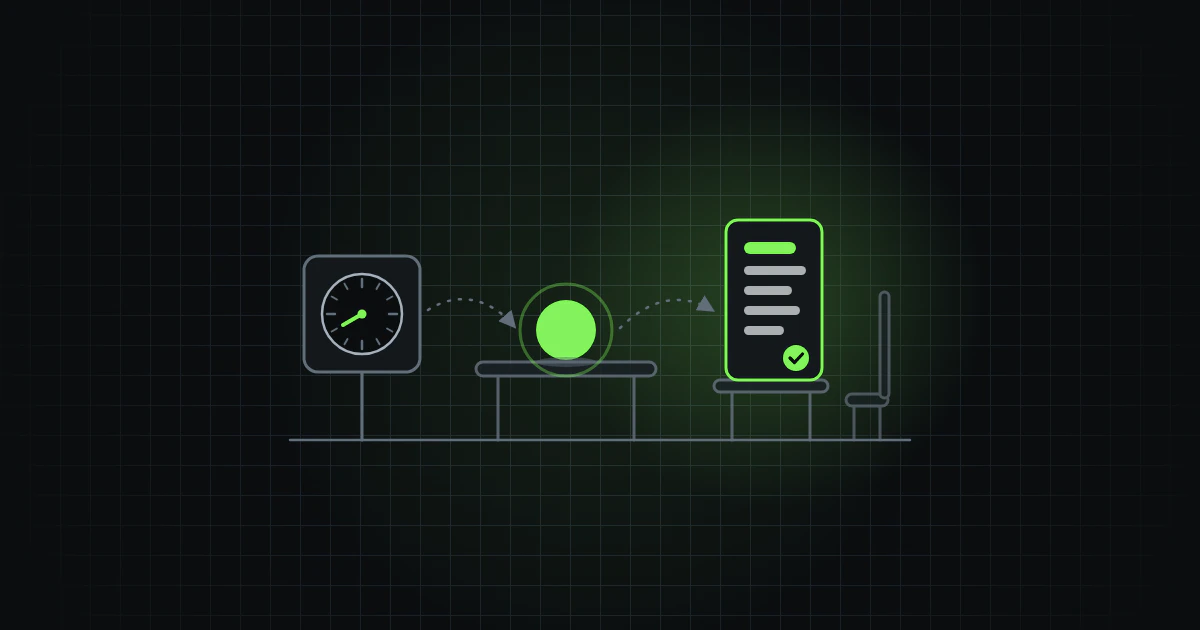
When nobody is there, nobody can answer the agent's questions, so a good first job to run on its own is one that can only read.
This part is about the same agent when it runs with nobody sitting beside it: started by a schedule or by something that happens in GitHub, or running on the vendor's computers instead of yours. Until now you have started the agent yourself and followed its steps in the chat or the editor, even after part 5 gave it a way to reach systems outside your files, such as an issue tracker. Part 1, From AI chat to agentic work, said that an agent can run in an editor, in a terminal, in a CI job or on a schedule.
A summary nobody has to ask for
A made-up example: the developer of the web app from the earlier parts wants a short summary of yesterday's commits ready every morning. Today the developer opens the agent in the editor, asks for the summary and pastes it into the team's chat.
The job changes nothing in the project. It only reads the history and writes a few lines, which makes it a safe first job to move out of the editor. The developer will run it as a CI job that starts on a schedule. The summary will wait on a GitHub page. Sending it on to the team's chat is a later step.
The same agent in five places
A fifth place belongs with the four from part 1: the vendor's own cloud, where you start the agent and it runs on the vendor's computers.
| Where it runs | Who starts it | Who is there while it runs | Good for |
|---|---|---|---|
| In the editor | You | You, beside it | Asking and checking as you go |
| In the terminal | You | You | The same, plus scripts |
| In CI, when something happens | An event, such as a comment on a pull request | Nobody; you read the result later | Checks that run when something happens |
| On a schedule | The schedule | Nobody | The same job every morning |
| In the vendor's cloud | You, from a browser or a phone | You, or nobody: it keeps running if you close your laptop | A long task that goes on while your laptop is closed |
Our rule of thumb: start where you can follow what the agent does, in the editor or the terminal. Move a job out when you ask for the same thing again and again and can judge the result by reading it. A job that must run by itself every morning belongs on a schedule. The vendor's cloud may still be the easiest first try, since you start it from a browser and write no file. Whichever place you choose, an agent running unattended should get no more than it needs and should not act on text from people you do not know. An agent that starts when someone comments reads whatever the commenter wrote, so on a public repository an outsider can give it instructions.
What goes along to a run in the cloud
A run in the vendor's cloud starts from a copy of your repository, not from your computer. A CI job has a copy only if one of its steps checks the repository out. Anthropic's documentation says that what you commit to the repository is available in the session, and that what you have installed or configured only on your own machine is not.
In Claude Code's cloud sessions, the repository's instruction file from part 2
and its skills from part 4 go along, because they are part of the copy. So does
its .mcp.json from part 5, in a session with one repository. The versions in
your home folder, the MCP servers you added only for yourself and sign-ins that
need a browser stay behind. The documentation's advice is to commit your own
configuration to the repository.
OpenAI's documentation says the same of skills: the ones stored in the repository are available in cloud tasks, and personal skills from your computer are not synced.
When nobody is there
In the editor, you are there to answer when the agent stops and asks. A job that starts on a schedule has nobody to answer. By default, a job in Claude Code, Codex and GitHub Copilot can do only what was allowed before it started, so the first job only reads. Part 7 goes through how to set those limits, and what else can answer in your place.
Claude Code, Codex and GitHub Copilot
We describe the tools as their documentation stood on 30 October 2026. What we say may have changed since.
All three can run in
GitHub Actions.
A job there is described by a workflow file, a YAML file kept in the
repository's .github/workflows folder. The three jobs below share one file and
differ in one step, so the file comes first, with a place left for the tool's
step:
name: Daily summary
on:
  schedule:
    - cron: "30 9 * * *"
  workflow_dispatch:
jobs:
  summary:
    runs-on: ubuntu-latest
    timeout-minutes: 10
    permissions:
      contents: read
    steps:
      - uses: actions/checkout@v6
        with:
          fetch-depth: 0
      # the step for your tool goes here
Read from the top:
nameis what the repository's Actions tab shows for the job.onsays what starts it.schedulestarts it at fixed times.cronsets them:30 9 * * *is 09:30 every day, in UTC (10:30 or 11:30 in Sweden).workflow_dispatchadds the Run workflow button to GitHub, for starting the job by hand.runs-onpicks the runner.timeout-minutesmakes GitHub cancel the job after ten minutes.permissionssets what the job'sGITHUB_TOKENmay do: here, only read the repository.- The first step checks the repository out onto the runner.
fetch-depth: 0fetches the whole history, so thatgit logcan see yesterday's commits.
In Claude Code, the
GitHub Action runs the agent
in CI, either when someone mentions @claude in a comment or, with a prompt, on
any GitHub event, such as a schedule. It needs the Claude GitHub app installed
on the repository, and a second line under permissions, id-token: write,
which it uses to sign in to GitHub as that app. The step allows one GitHub MCP
tool, mcp__github__list_commits, which lets Claude read the commits through
GitHub's API. It is adapted from Anthropic's own example: we left out the issues
and the model setting and wrote the prompt ourselves.
      - uses: anthropics/claude-code-action@v1
        with:
          anthropic_api_key: $
          prompt: "Summarise yesterday's commits in ten lines"
          claude_args: |
            --allowedTools "mcp__github__list_commits"
In OpenAI's Codex, the
Codex action runs the agent in
CI. The action's page shows only an example that starts on a pull request, so
this step is assembled from the action's list of settings. The read-only
setting lets Codex look at the files and change none, and output-file saves
its answer in a file that the last line prints.
      - uses: openai/codex-action@v1
        with:
          openai-api-key: $
          prompt: "Summarise yesterday's commits in ten lines"
          sandbox: read-only
          output-file: summary.md
      - run: cat summary.md
GitHub Copilot runs in CI with copilot -p, which runs one prompt and
exits. This step is adapted from the example on GitHub's
page about automating it with Actions:
we shortened the prompt and let the answer go to the log instead of a file. The
--allow-tool flag allows git commands, and --no-ask-user turns off Copilot's
interactive question prompt. The token is a fine-grained personal access token
with the "Copilot Requests" permission. Grant it only that permission. Then
neither this token nor the job's own GITHUB_TOKEN, which the permissions
lines above limit to reading, can write to your repository, so a git command
the agent runs cannot change it.
      - uses: actions/setup-node@v7
      - run: npm install -g @github/copilot
      - env:
          COPILOT_GITHUB_TOKEN: $
        run: copilot -p "Summarise yesterday's commits in ten lines" --allow-tool='shell(git:*)' --no-ask-user
We have checked that each file is valid YAML and that its settings are on the tool's page, but we have not run the jobs. Running them takes a key or a token for the tool and a repository of our own, so try them first where nothing depends on them.
In the vendor's cloud,
claude --cloud
starts a session on Anthropic's computers, and
Codex Cloud gives each task a workspace
of its own. GitHub Copilot can run a session in a
cloud sandbox,
an isolated Linux environment that GitHub creates for the session, if your plan
and your organisation allow it.
Check that it works
Try the prompt in an ordinary chat first. Then press Run workflow, as in the
steps below. When the run is done, open it, open the job summary and read the
log of the tool's step. For Codex, that is the last step, which prints the file.
The answer is in the log. It should list yesterday's commits and no others.
Compare it with this command, run in the repository's folder:
git log --since=yesterday --oneline
What it costs
A daily job costs something every day. A run in CI uses two things: the tool's usage and GitHub Actions minutes. GitHub counts Copilot's usage as AI credits, which you generally cannot trace to a single prompt or session. After the first week, look at the usage of the account that the key belongs to.
Troubleshooting
If nothing appears under Actions, check where the file is. GitHub reads workflow
files from the .github/workflows folder, and a schedule or a Run workflow
button works only when the file is on the default branch, usually main.
If the run fails at the first step, open that step's log. Check that the secret exists and that its name is spelled exactly as in the file. For Claude Code, also check that the Claude GitHub app is installed on the repository.
If the run succeeds but the answer is empty or wrong, a tool may have been refused. A plain-text prompt to Claude has no shell or GitHub access until the file grants the tools the prompt needs, so check which tools it needs and allow exactly those.
If the run starts at another time than you expected, remember that the times in a schedule are UTC. GitHub also says that a schedule can be delayed when many workflows start at once, such as at the start of every hour, and advises another time of the hour. That is why the file uses 09:30.
If the run goes on for too long, the timeout-minutes line cancels it after ten
minutes.
Advanced
The basics above are enough to start. Three things for later:
- Jobs that change code. They leave a branch or a pull request. You read it before it counts. In the factory, a change goes live only once the gates pass (Why we run an agent-run software factory). Part 7 covers the permissions such a job needs.
- Signing in from a workflow without a stored key, through workload identity federation, which Claude's action supports.
- GitHub Agentic Workflows: automation written in markdown, which runs with read-only permissions by default.
Start small
This is our own advice for a first job. Choose a job that runs unattended, repeats and has a result you can check, such as the summary. Give it no way to write. If a later job must write, add that one tool and nothing else.
-
In a private repository with some commits from yesterday, create a file at this path, on the default branch, usually
main:.github/workflows/daily-summary.ymlFill it with the file from above, and put your tool's step in place of the last line.
-
Add the key as a secret. In the repository's Settings, open Secrets and variables, then Actions, then New repository secret, and give it the name the file uses. Never paste the key into the file. For Copilot, use the token described above. For Claude Code, also install the Claude GitHub app on the repository: the action's page shows how.
-
Open the Actions tab, pick Daily summary in the list and press Run workflow.
-
When the run is done, read the answer in the log, as described above, and compare it with the history.
-
Leave the schedule on when the answer is right, and look at the Actions tab after a few mornings.
What comes next
The working titles may change along the way.
- From AI chat to agentic work
- The instruction file, the first thing an AI agent reads
- Give each AI agent a job of its own
- Skills, for work that must be done the same way every time
- MCP, how an AI agent reaches other systems
- Where the AI agent runs and who starts it (this part)
- Set the limits in advance
- Less steering for every model


